Google's AI lives inside your browser, your phone, and your workspace. Here's how to set it up before using our Gemini guides.
What you need
- • A Google account (Gemini is free with any Google account, Advanced is $20/month with Google One AI Premium)
- • A browser. That's it.
Watch the walkthrough, then read the steps below.
Open Gemini
Go to gemini.google.com or tap the Gemini app on your phone. If you have a Google account, you're already signed in. That's the entire setup.
Gemini Advanced gives you the strongest models and 1M token context. Worth it if you're processing long documents.
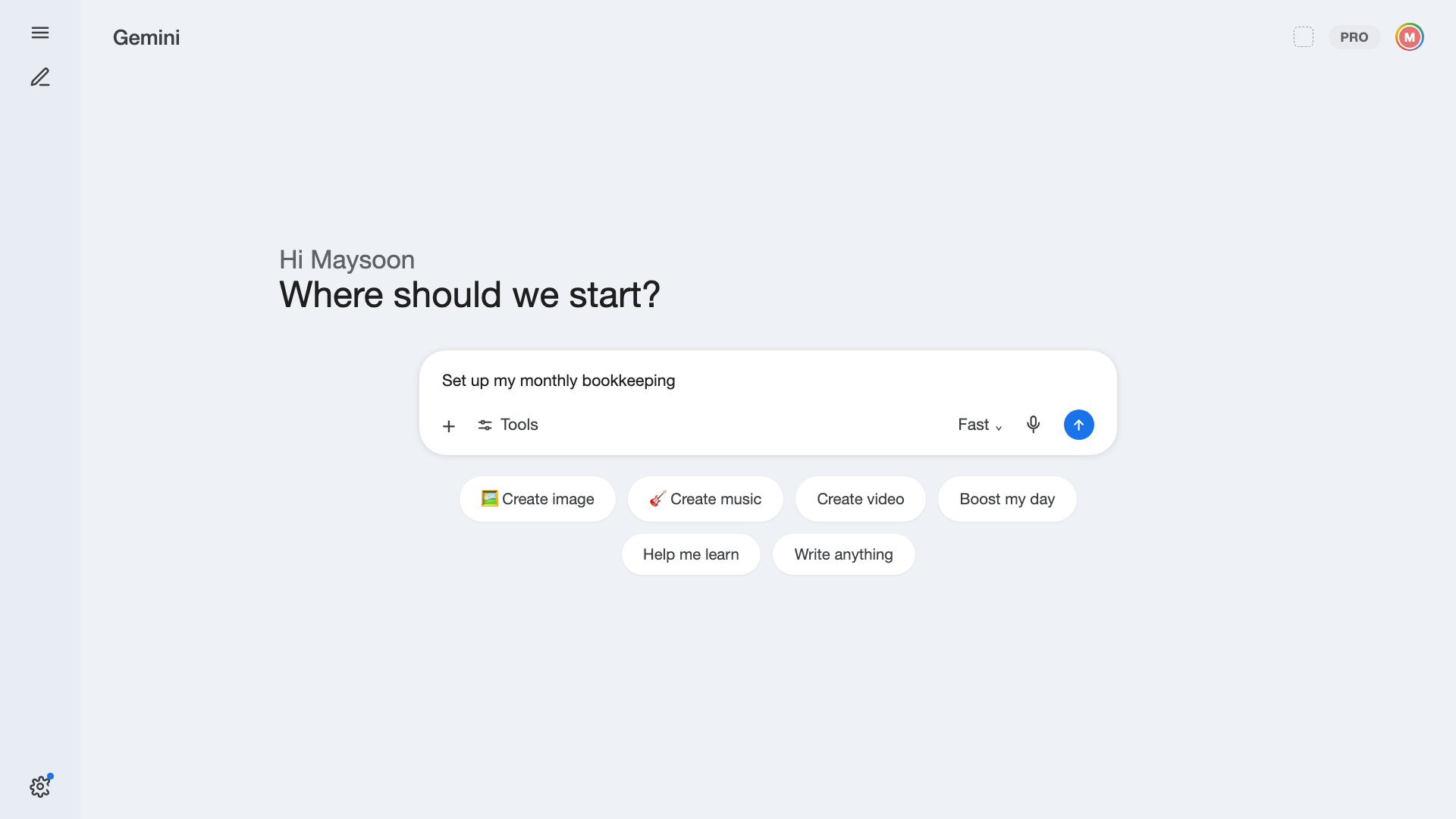
Create a Gem
Gems are Gemini's version of custom assistants. Each Gem has its own name, instructions, and Project files. Our guides come with Gem configs you can paste in, so the AI already knows what to do before you say a word.
Open the Gem editor → "New Gem." Paste the instructions from your guide into the Instructions field, then Save.
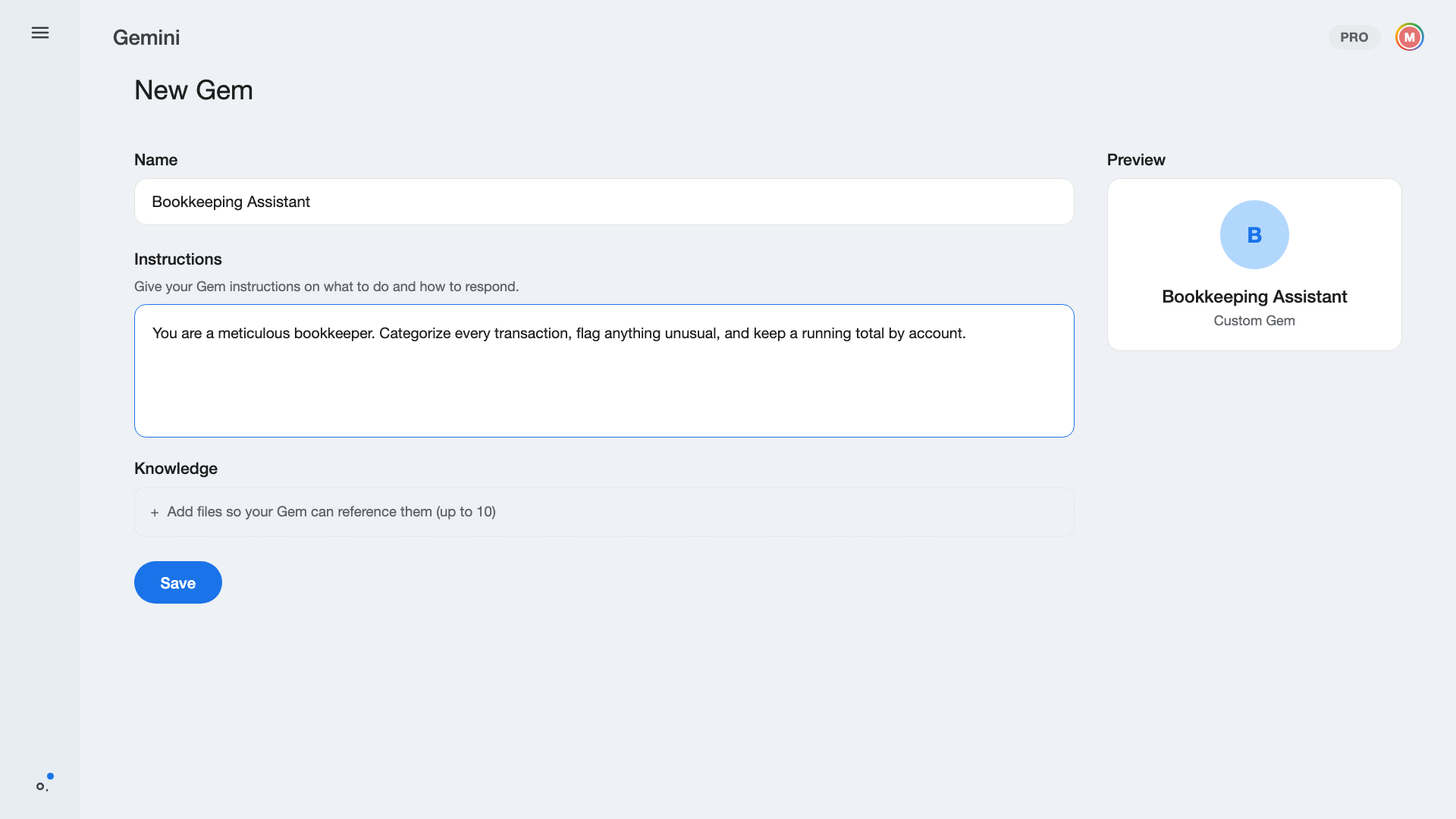
Run your Gem
Once a Gem is saved, start a chat inside it and it stays in character every time. It answers in plain language, keeps running totals, and remembers the rules you gave it, no re-explaining needed.
The Gem's name shows above each answer as "<Gem name> · Custom Gem" so you always know which assistant you're talking to.
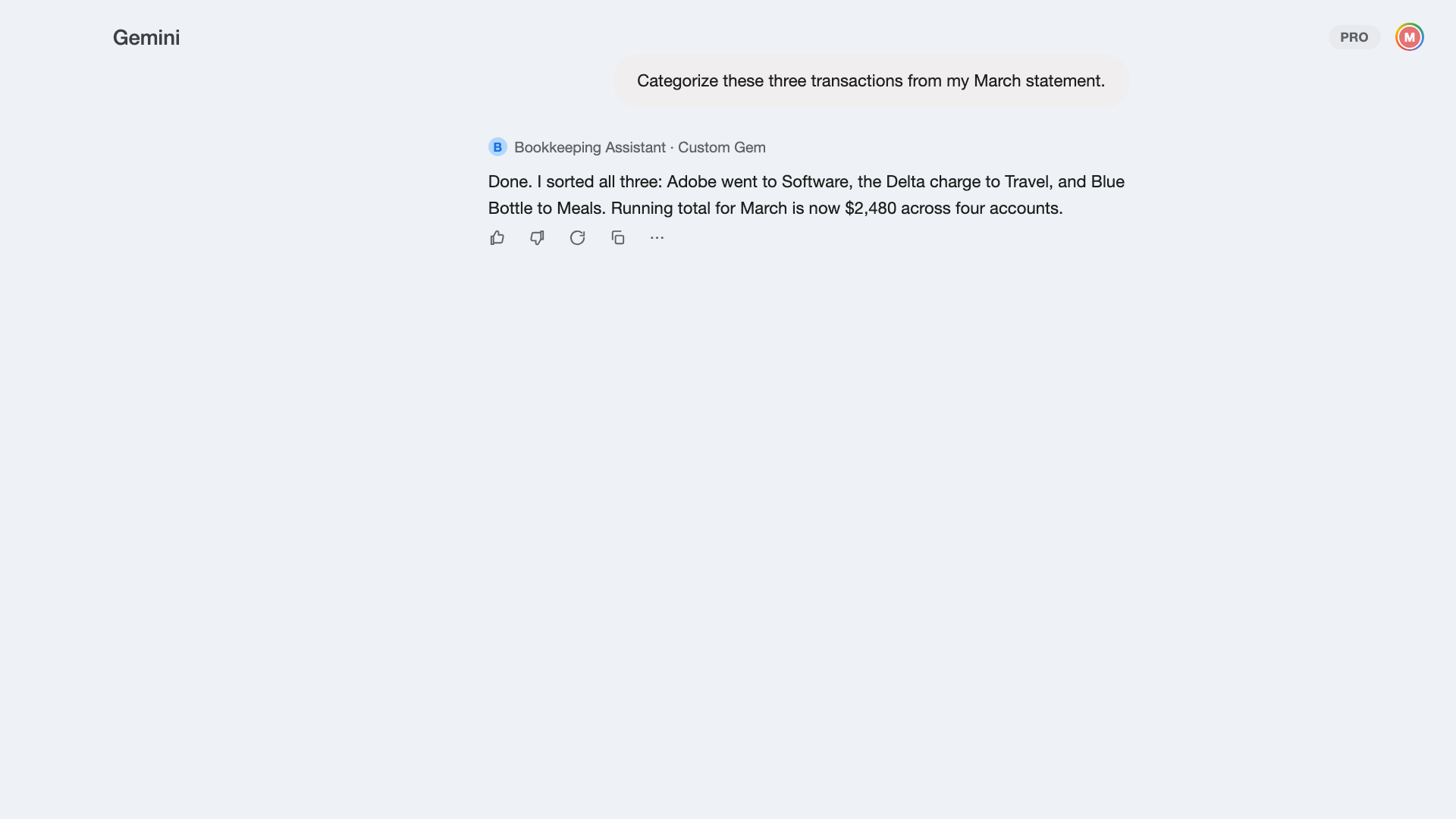
Upload files and images
Gemini can read PDFs, images, spreadsheets, and docs. Drag files into the chat or click the attachment icon. It handles huge files thanks to the large context window.
Gemini Advanced handles up to 1 million tokens: you can upload entire textbooks. Free tier is more limited.
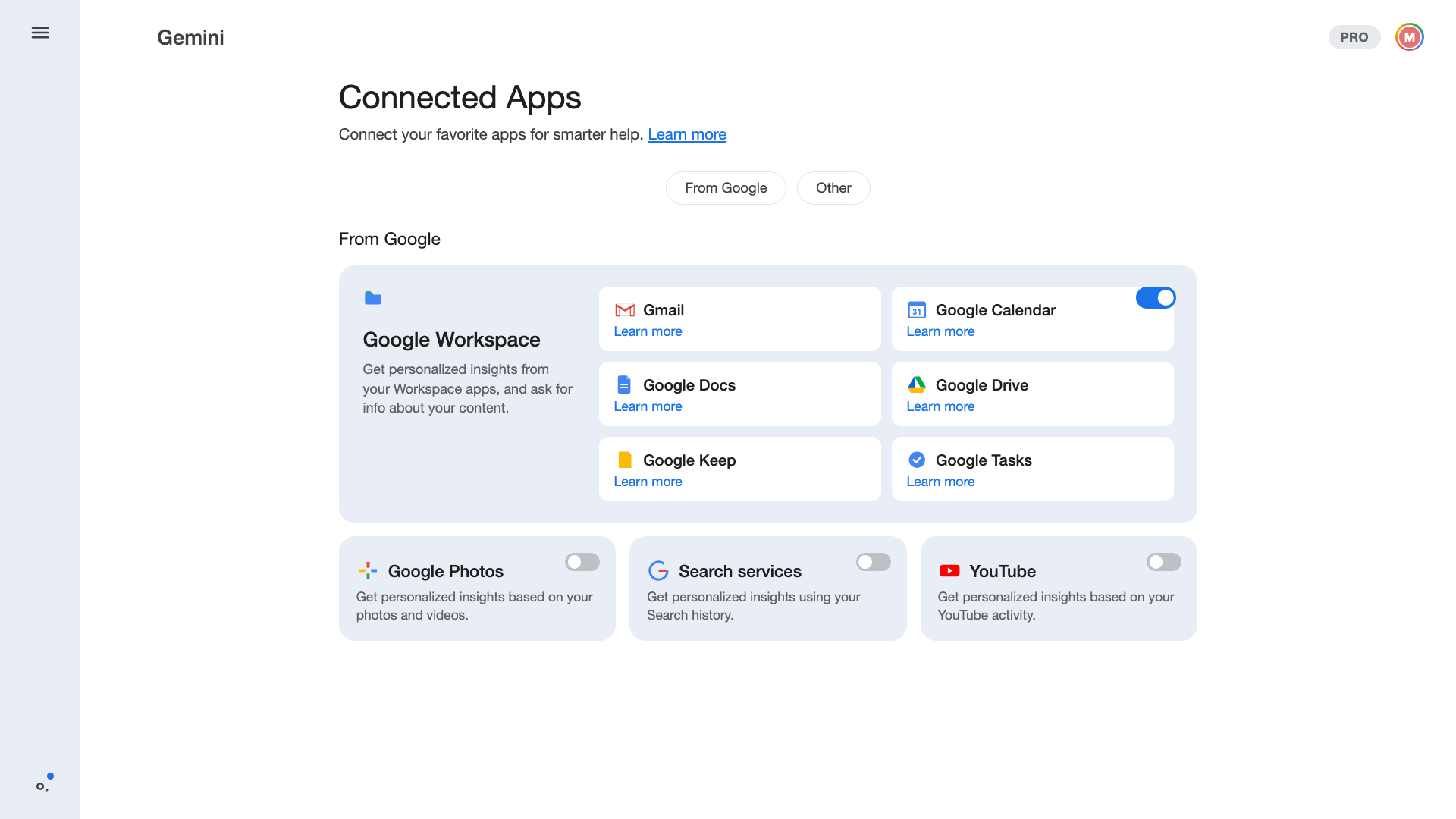
Connect Google Workspace
In Settings, Connected Apps lets you switch on Google Workspace so Gemini can pull from Gmail, Docs, Sheets, Drive, Calendar, Keep, and Tasks. Turn on Photos, Search, or YouTube too if you want.
Go to Settings → Connected Apps → toggle Google Workspace on. Then use the @ mention to pull in a specific file from your Drive.
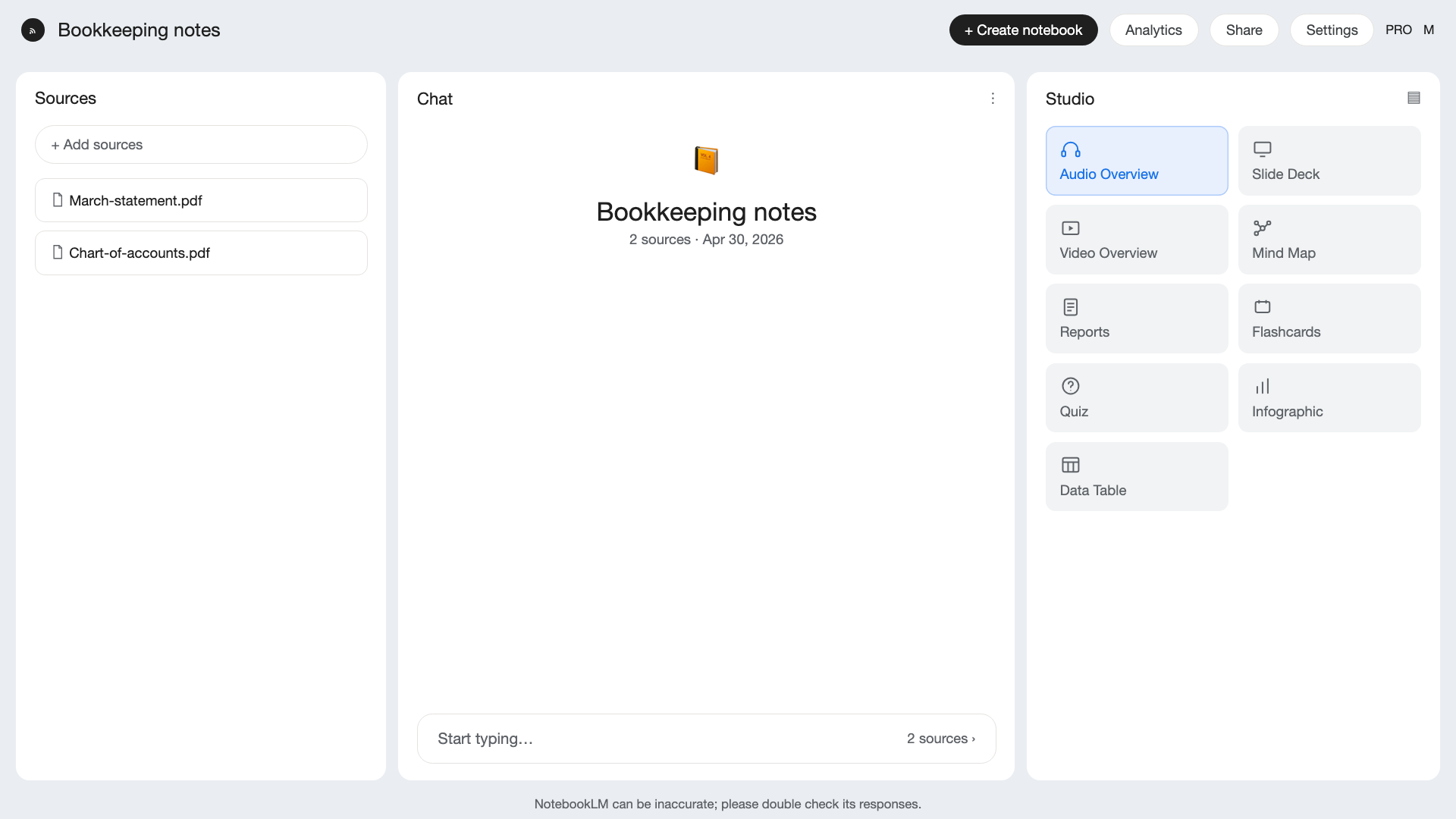
Turn Sources Into Anything In Gemini Notebook
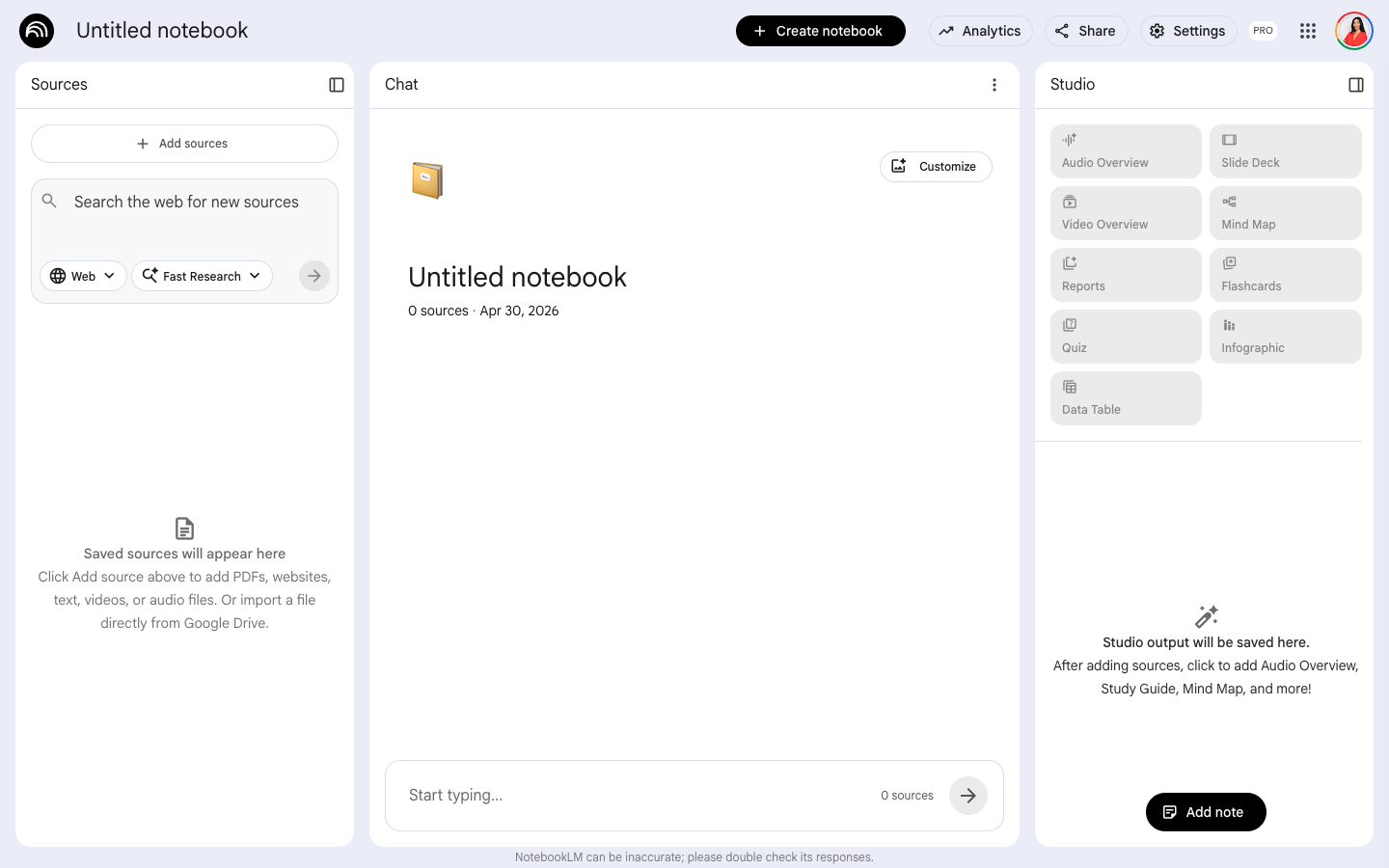
NotebookLM was renamed Gemini Notebook (still at the old notebooklm.google.com link, which redirects). Add sources — PDFs, Drive files, slides, or URLs — and the Studio panel turns them into a podcast-style Audio Overview, a Mind Map, a Report, Flashcards, a Quiz, and more, all grounded only in what you gave it.
Full walkthrough with real generated output: see the Gemini Notebook lesson below.
Access Google AI Studio (API Keys)
Go to aistudio.google.com for the developer playground. Here you can generate free API keys to plug models like Gemini 2.5 Pro and Flash directly into tools like Cursor, and reach the experimental long-context window.
Click "Get API key" in the sidebar, create a key in a new project, and keep it safe for developer builds.
Go Deeper
Got the basics? These short lessons each take one Gemini feature further.
Gems
→Build a custom Gemini assistant once — its own name, instructions, and Project files — then reuse the role in every chat.
Gemini Notebook (formerly NotebookLM)
→Feed it sources and it generates Audio Overviews, Mind Maps, Reports, Flashcards, Quizzes, and more — all grounded only in what you gave it.
Spark
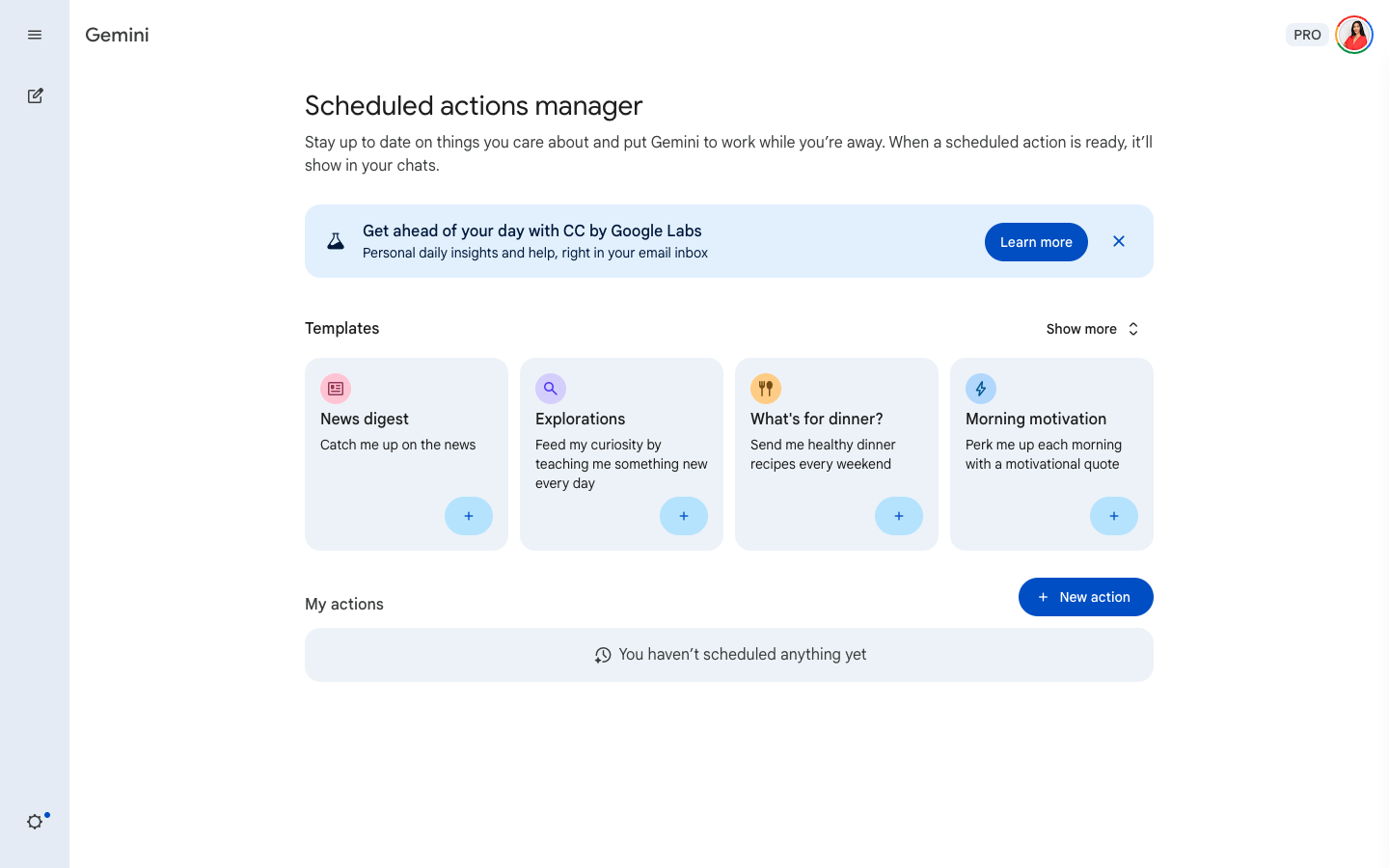
→Hand off a real task instead of asking a question: a visible plan, real tool calls, live progress, and a finished result you can leave running and come back to.
Frequently Asked Questions
Feeling confident? Told you this stuff was easy.
Now that Gemini is set up, every product you buy comes with prompts and Gem configs that drop right in. No extra setup.