Describe It. Watch The Real Tools Build It.
What is Grok Imagine?
Imagine is Grok's dedicated image and video tab, separate from chat. Type a prompt and choose Image or Video, a Speed or Quality (v2.0) model, and an aspect ratio. Beyond plain generation, the same tab has real segmentation, background removal, smart resize, and product-scene tools — it is a small creative suite, not just a prompt box.
What Actually Changes?
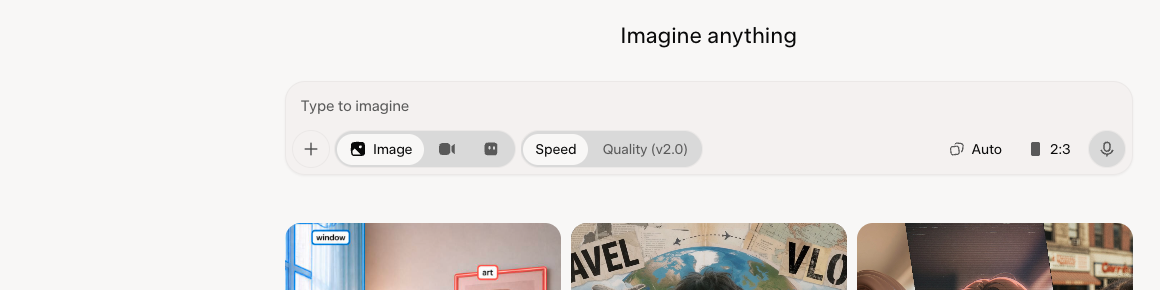
The real Imagine composer, blank, right before generating: a specific prompt naming subject, setting, lighting, and style.
Real footage: the exact prompt typed in, four real results appearing, then the full-size image with its real post-generation tools panel — Segments, Remove Background, Make Video, Aspect Ratio, Share.
How Do You Set It Up?
Watch the walkthrough, then read the steps below.
A Real Creative Suite, Not Just A Prompt Box.
The landing page is a template gallery for real tools: Segmentation, Photo Edit, Reimagine, Smart Resize, BG Removal & Change, Product Scenes. Each tile is a genuine capability, not a style filter.
If you only ever type prompts into the top box, you are skipping most of what this tab actually does.
Write A Real Prompt.
Specific beats vague: subject, setting, lighting, and style, the same way you would brief a designer.
Name the style explicitly ("minimal illustration style") if you do not want a default photorealistic look.
Pick Image Or Video, Speed Or Quality.
The real controls: Image or Video, Speed (fast) or Quality v2.0 (slower, better), and an aspect ratio picker. All visible before you generate, not buried in a settings menu.
Start on Speed to iterate on the prompt fast, then switch to Quality for the version you actually keep.
Four Real Results From One Prompt.
Submitting a prompt returns a set of real generated variations, not just one. Each reads the prompt the same way but renders it slightly differently: same window, same laptop and coffee, different light and layout.
If none of the variations quite work, tightening the prompt (naming the exact mood or composition) does more than regenerating blind.
Open One, Get A Real Toolset.
Click into a result and the real editing panel appears: Segments (labels objects in the scene), Remove Background, Make Video (animate the still), and Aspect Ratio, plus Share. Generation is the start, not the end.
Make Video turning a still into motion is worth trying even on a result you already like — it is a different capability, not just a re-roll.
What Should You Use It For?
Storyboard a video concept or generate cover art fast, then use Smart Resize to reframe it for every platform's aspect ratio.
Product Scenes and BG Removal turn a plain product photo into something that looks shot for a catalog, without a photo studio.
Segmentation and Photo Edit speed up client mockup work — label and adjust a scene instead of manually masking it.
When Should You Skip It?
- •You need it for free. Generation requires at least SuperGrok Lite ($10/month) — there is no free tier for Imagine itself.
- •You need precise, repeatable brand assets. Generated output varies run to run, even from the same prompt; for a locked logo or exact brand color, use real design tools instead.
- •You need commercial certainty on rights. Check xAI's current terms for your specific use case before shipping generated images commercially.
What Does This Replace?
A stock photo search plus a separate background-removal or resize tool, for quick concept and social content. It does not replace a photographer or designer for work that has to be exact — treat it as a fast draft, not a final asset.
Where Next?
* Tool outputs shown in video walkthroughs are representative. Results vary by account, setup, and configuration.
Verification
- Last verified:
- 2026-09-05
- Platform tested:
- grok.com/imagine (web)
- Plan tested:
- SuperGrok Lite ($10/mo) — the minimum tier that unlocks generation
- Model shown:
- Grok Imagine
- Official source:
- xAI: Grok Help
- Screenshots updated:
- 2026-09-05 (real capture: landing, prompt, controls, real generated result)